
Manage projects and scenes
Choose the correct organization and project. Learn what happens to your work when you pause, archive, or delete a project.
Organization, project, scene, conversation
| Level | What it contains |
|---|---|
| Organization | The account space that owns the projects, team membership, plan, and usage records. |
| Project | The files and environment for a task. A project can contain several scenes and generated files. |
| Scene | The selected scan or model and the changes saved with it. Choose a scene from Scene source in the editor. |
| Conversation | A task history tied to a scene. Continue the same conversation when correcting or extending that task. |
Before reporting that a file or conversation is missing, check all four levels. Switching organizations or scene sources changes what you are looking at.
Create and open a project
- Sign in and select the intended organization.
- Open Projects and create a project.
- Enter a Project name and optional description, then select Create project.
- Wait for the project to be ready. If preparation fails, read the status and use Retry if available. Do not create duplicate projects to retry.
- Open the project details and select Open in CADground.
Free allows one project per organization until it is deleted. Archived projects still count. Pro can allow more projects. To open the editor, you also need a suitable role and an active environment. Being able to read project details does not always give editor access.
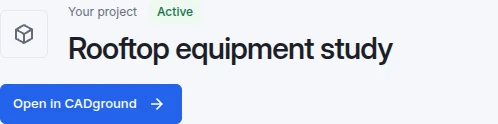
- Project identity. Check the name before entering the editor.
- Open in CADground. Select this button to enter the project workspace. The start screen appears if the project has no source scene yet.
Work with multiple scenes
Use a clear filename for each source: a floor, capture date, or equipment area. In the editor, use Scene source to choose the scene. Check the selected scene before starting AI work or importing geometry.
Include the drawing revision in its filename. If you change the source scan, the old measurement report still describes the old scan. Ask for a new comparison and record the new source.
Archive and restore
Archiving keeps your work but removes the project from active use. Select the archive action and read the confirmation. To work on it again, open the archived project and restore it. Wait for the environment to be ready before editing.
Archiving does not delete a project or free the Free project slot. An archived project also cannot accept an active external MCP connection.
Pause or resume CADground
Project details can show Pause or resume CADground. This controls the organization’s CADground environment, not one browser tab. Only an owner or administrator can use it. You may need to archive other active projects first.
- Ensure no colleague needs the active environment and let current work finish.
- Read the messages that explain whether the project can be paused or resumed.
- Select Pause CADground or Resume CADground as appropriate.
- Wait for the operation to complete. It can continue after you leave the page; return and check its status before retrying.
Pausing preserves scenes, files, and conversations. It does not remove the project or create a new copy.
Delete an archived project
Delete a project only when you want to remove it. Download the files you need first. Deletion can remove its environment, scenes, files, conversations, and stored Free data. Past usage records remain.
- Archive the project and open its details.
- Find Delete archived project. The action is only available when permissions and environment conditions allow it.
- Select Delete project, read the confirmation, and type the project’s exact name.
- Select Permanently delete project only if that is your intended action.
Do not delete a project to fix a slow upload, a camera problem, or an interrupted AI task. Use the specific recovery steps first.