
Account, plans, and usage
Manage your profile and password. Check what your plan includes and how much you have used.
Update your profile
- Sign in and open Settings.
- Edit your first name, last name, or phone number.
- Save the profile form and check the success or error message. Cancel leaves the existing values unchanged.
Email is read-only in this form. Organization membership and project permissions are managed in Team, not through personal profile fields.
Change or reset your password
Use the password form in Settings. Enter your current password. Enter the new password twice, then submit the form. Use at least eight characters. The maximum is 72 UTF-8 bytes; some characters use more than one byte.
If you cannot sign in, use the password-reset link on the sign-in page and follow the email instructions. Accounts using a social sign-in provider cannot create a local password through the ordinary change-password form.
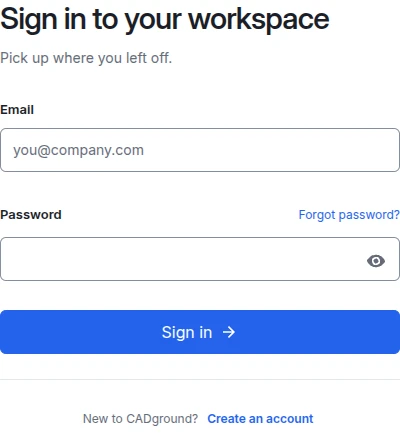
- Email. Enter the address used when you registered.
- Password. Enter your account password. If you cannot remember it, use Forgot password? in this form.
- Sign in. Continue to your projects. Creating another account will not recover projects from an existing account.
Understand Free and Pro
| Capability | Free | Pro |
|---|---|---|
| Projects | One project per organization until it is deleted. Archived projects still count. | Additional projects according to current availability. |
| Scan formats | PLY, PCD, E57, and GLB scene inputs. | Also LAS and LAZ scene inputs. |
| Built-in AI task after closing the editor | Keep the editor open. If all scene tabs close, the task stops after a short period allowed for reconnection. | Supported tasks can continue in the background. |
| Team invitations | Not available. | Three seats including the owner; pending invitations reserve a seat. |
| External MCP | Not available. | Requires an active dedicated environment and the feature enabled for the project. |
| Billing | Free plan. | US$99 per month per organization at early-access pricing, before VAT, with US$35 of AI work included each month. Renewed monthly until canceled. The owner manages checkout and cancellation in Billing. |
See Pricing for the current plan details. An upload limit does not state your storage allowance. A token count does not state your AI allowance. Check Billing to see what your organization can use or buy.
Upgrade a project
- Open Billing as the organization owner and inspect current availability.
- Review the plan and terms. Accept the terms and confirm when Pro should start, then continue to the payment provider.
- After payment is confirmed, your active Free project moves to Pro automatically. You can close the billing page and follow the transfer on the project page.
- Wait for the destination environment and transfer to finish.
- Open the transferred project and verify its source files, saved scenes, and generated outputs.
Do not delete the original project as an upgrade step. If the interface says an operation is still pending, return to its status instead of launching another transfer.
Read the Usage screen
Organization owners and administrators can open Usage. Choose a seven-, thirty-, or ninety-day range and use Refresh when you need an updated view.
- AI requests and tokens describe recorded activity for the selected period.
- Cached input tokens are a subset of input tokens, not an extra quantity to add again.
- Resource figures can include totals from CPU readings taken over time. A displayed resource number is not necessarily a separate charge.
- A day with zero recorded usage is not by itself an error. Check the time range and selected organization.
External AI clients use their own model provider. That provider’s billing is separate from CADground’s built-in AI usage; see MCP and billing.
When a setting is unavailable
Check your selected organization, role, plan, and project status. Read the explanation beside a disabled control. If an action fails, record the exact error and time. Then follow the support checklist.
Account, data and billing requests
Use Account and billing requests for data access, account closure, an organization export, an invoice, a refund or withdrawal from a contract. Review your request, then confirm submission. Save the dated receipt. A receipt confirms that the request was received; it does not confirm completion. You can also email support@cadground.ai.
Read Terms and receipts to download your acceptance records. Canceling renewal in Billing and withdrawing from a contract are separate actions.