Connect an external AI through MCP
Connect your own AI client to CADground’s scene tools. Copy the project URL, allow access, and test the connection before starting work.
What MCP connects
MCP means Model Context Protocol. It connects an AI client to tools. Your AI client provides the model and conversation. CADground provides access to the selected project’s scene, camera, measurements, and geometry tools. The connection’s permissions control which tools the client can use.
With MCP, the agent can request views and measure positions in the working scene. A scan attached to a chat does not give the agent these tools. Keep the editor open to inspect its work.
Check availability first
- An active CADground Pro project with a ready, dedicated environment.
- External MCP enabled for that project. A Pro plan alone is not enough. Look for Connect AI in the project details.
- Access to the project through your own account. To allow changes, your account must also have a role that can edit the project.
- A remote MCP client that supports Streamable HTTP and browser-based OAuth authorization.
- A scan loaded and selected in the project before your first scene task.
If Connect AI is missing, check whether the project is ready. Check your plan and permissions. External MCP may not be enabled in your environment. Changing the URL or port does not enable the feature.
1. Copy the project’s MCP URL
- Sign in to CADground Cloud and select the correct organization.
- Open the project details, not just the 3D editor.
- Find Connect AI.
- Under MCP server URL, select Copy URL. If copying fails, select the field and copy its full value.
https://cadground.ai/api/mcp/projects/PROJECT_IDThis is an example URL. Replace the entire example with the URL copied from your project. Do not leave PROJECT_ID in the URL. Do not use the homepage URL or the editor’s browser address.
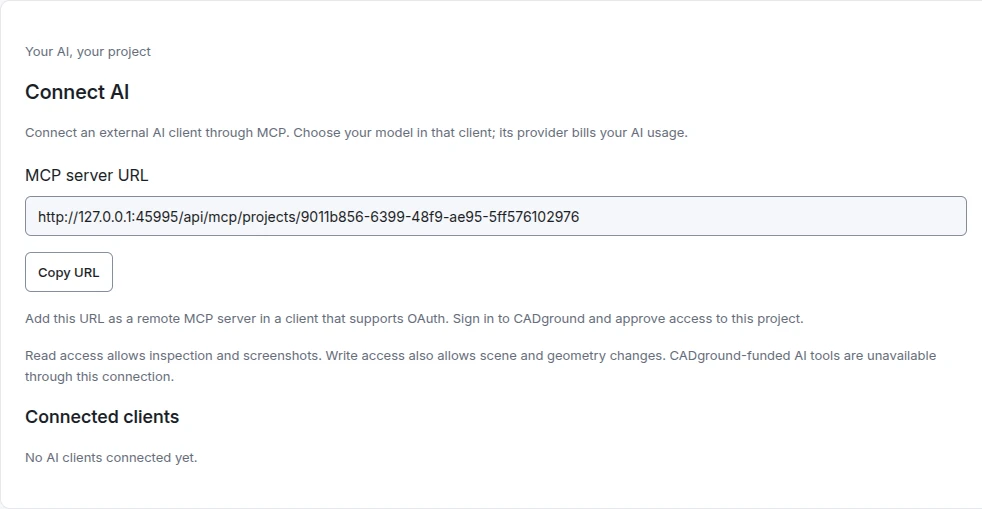
This screenshot shows a temporary local example. Copy the URL from your own project. A hosted project uses an HTTPS URL.
- MCP server URL. This identifies the project your external AI client can access. Do not replace it with the editor’s browser address.
- Copy URL. Copy the complete value, then add it as a remote MCP server in the client you want to use.
- Connected clients. Check this list after allowing access. The example is empty because no client has access yet. You can also disconnect clients here.
2. Add it to your AI client
| Client | Setup guide |
|---|---|
| Codex | Register the remote server and sign in with the CLI |
| ChatGPT | Add a custom MCP server through Plugins |
| Claude | Add a remote custom connector |
| Claude Code | Add an HTTP server and sign in |
| Cursor | Add the server URL and check OAuth support |
Use OAuth authentication. You do not need to create a local stdio server, paste a CADground session cookie, or supply your model provider’s API key to CADground.
3. Choose the permissions
Your client opens the CADground sign-in page, then asks for permission to connect. Check the application name, account, and project. The default permission is Read only.
| Permission | Allows | Does not allow |
|---|---|---|
| Read only — mcp:read | Read scene and object information, select points for measurements, measure, capture pictures, and check how closely geometry fits the scan. | Moving cameras, changing focus or visibility, selecting scene objects, or editing geometry. |
| Read and write — mcp:read + mcp:write | All read operations, plus camera and focus changes, model import, supported geometry fitting and editing, and object changes. | Access to another project or CADground-funded AI extraction tools. |
Camera movement requires write access. A request to “fly around the room” changes the scene state, even if geometry stays the same. Choose read and write when you want to allow these actions. A Viewer role cannot grant write access.
The client must request write access before you can allow it. If it requested only read access, change the requested permissions in the client and reconnect. See write-permission troubleshooting.
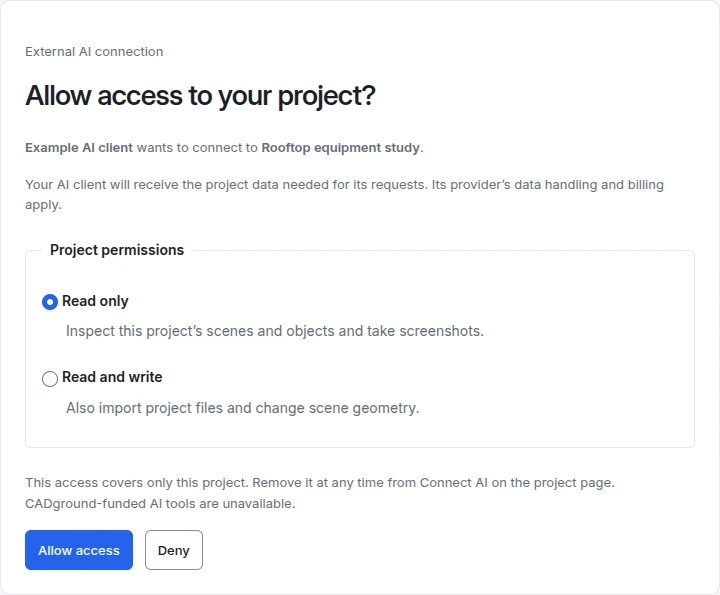
This is the actual permission screen, shown with local example data. No external AI client was given access to a production project for this screenshot.
- Client and project. Confirm both names. Deny the request if either is unexpected.
- Read only. This is the default. It permits the supported inspection and screenshot tools, not scene edits or camera movement.
- Read and write. Choose this when the task needs supported scene or geometry changes. Check the tool-permission reference for the exact limits.
- Allow access. Select this to allow the chosen permissions and return to your client. Select Deny to refuse access. You can remove access later in the project’s Connect AI panel.
4. Verify with a small read-only task
Use the CADground MCP connection. Read the current workspace and scene state. Identify the active source and units. List the scene objects. Take a picture without changing the scene. If a tool fails, report the error. Do not guess what the scene contains.
Expected result: the tools return information about the correct scene and a picture of it. A reply that only says “connected” is not enough. In Cloud, the client should also appear under Connected clients.
Keep your first test small. Then try a measurement. Before asking for camera movement or geometry changes, check that the connection has write access. Start with one part of the scene.
Who supplies and pays for the model?
The external client chooses its AI model and provider. The provider bills you for model usage under your plan with it. CADground does not receive the client’s model API key. It does not use its built-in Chat to answer an external MCP tool call.
Some built-in tools are not available to external clients. create_object and extract_potential_surface can start AI work paid for by CADground. Write permission does not enable them. External clients can still use the supported geometry-fitting tools or import a model already uploaded to the project.
Disconnect an AI client
- Return to the project details and find Connect AI or AI connections.
- Under Connected clients, identify the client you want to remove.
- Select Disconnect, then Remove in the confirmation.
- Check the success message. The connection can no longer access the project. CADground cancels its access and any running requests.
Removing a server from an AI app does not revoke its access in CADground. Disconnect it in CADground to remove that access.